

You just combined three reports into one PDF is a portable document format created by Adobe Systems in 1993 that encapsulates text, fonts, and graphics into a single file. You hit "Save," opened the final file, and checked the properties. The author listed isn't you. It's not even one of the people who wrote the original drafts. It might be "Admin User," "Google Chrome," or worse-a name from a template you used five years ago.
This happens more often than you'd expect, and it’s rarely a glitch. It’s actually how the PDF standard works-or rather, how it fails to work when files are combined. When you merge documents, most tools don’t intelligently combine the authors; they simply copy-paste metadata from one source and discard the rest. If you’re sending this file to a client, uploading it to a compliance portal, or submitting it for academic review, having the wrong author attached can look unprofessional or raise red flags about data integrity.
The Two Hidden Layers of PDF Metadata
To understand why your merged file carries the wrong name, you have to look under the hood. A PDF doesn’t just store visible text and images. It carries two separate layers of hidden information that describe the file itself.
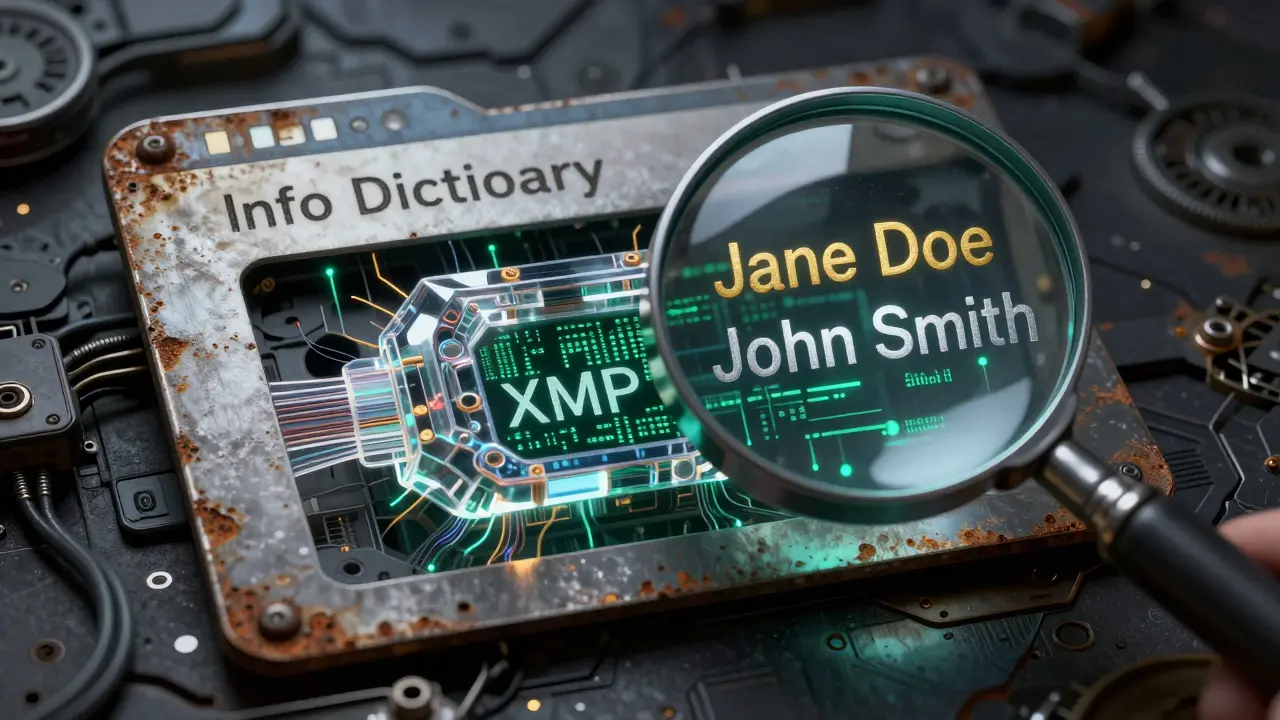
The first layer is the Info Dictionary is a legacy structure in PDF files defined in ISO 32000-1:2008 that stores basic document properties like Author, Title, Creator, and CreationDate. This has been part of the PDF specification since version 1.0 in 1993. It’s simple, flat, and easy for older software to read.
The second layer is the XMP Stream is an Extensible Metadata Platform packet embedded in PDFs since version 1.4 that uses XML to store richer, standardized metadata including Dublin Core creator lists. Introduced in 2001, XMP was designed to be more robust and flexible. It allows for multiple authors, detailed creation histories, and standardized tags.
Here is the problem: these two layers often disagree. One PDF might list "Jane Doe" in the Info Dictionary but "John Smith" in the XMP stream. Another might have an empty Info Dictionary but a full XMP record. When different applications create PDFs-like Microsoft Word, Adobe InDesign, or a web browser-they update these fields differently. Some only touch the Info Dictionary. Others prioritize XMP. Most viewers show you whichever field they prefer, which means the "Author" you see depends entirely on the software opening the file.
How Merge Tools Handle Metadata
When you use a tool to combine PDFs, the software has to build a brand-new file. It takes the pages from File A and File B and stitches them together. But what does it do with the metadata? The PDF standards (ISO 32000-1 and ISO 32000-2) do not provide a rule for merging metadata. They leave it up to the developer.
Because building a logical "combined" author list is complex, most tools take the path of least resistance. They usually adopt one of three strategies:
- First-file wins: The tool copies the entire Info Dictionary and XMP stream from the very first PDF in your stack. If your first page was a cover sheet created by "Marketing Dept" in 2018, your final 50-page report will list "Marketing Dept" as the sole author, ignoring everyone else.
- Last-file wins: Some command-line utilities, like certain configurations of Ghostscript is a suite of software based on the PostScript and PDF languages developed by Artifex Software, widely used for converting and processing PDF files via command line, default to taking metadata from the last processed file.
- Overwrite with defaults: Browser-based printing or macOS Preview often replaces all existing metadata with the current user’s system login name. If you print-to-PDF on a Mac, the author becomes your Apple ID username, regardless of who originally wrote the content.
- Inspect first: Before removing anything, use the tool’s view mode to see exactly what is hidden. Check both the Info Dictionary and the XMP stream. Note any discrepancies.
- Strip the old data: Run the removal function. This wipes the Info Dictionary keys (Author, Title, Subject, Keywords, Creator, Producer, CreationDate, ModDate) and clears the XMP stream. It also removes document IDs and trailer info that might link back to previous versions.
- Verify the output: Open the cleaned PDF. The metadata fields should now be empty or generic. Importantly, the visual content remains pixel-perfect. No re-rasterization occurs, so the quality is identical to the original.
- Add new metadata: Use your primary PDF editor to manually set the correct Author, Title, and other fields. Since the slate is clean, there is no risk of conflicting legacy data hiding in the background.
- Clean before merging: If possible, strip metadata from individual files before combining them. This forces the merge tool to generate fresh, neutral metadata rather than inheriting messy history.
- Use consistent sources: Try to keep all component PDFs created by the same application or export process. Mixing outputs from Word, Excel, and browser prints increases the chance of conflicting metadata structures.
- Automate with scripts: If you merge hundreds of files monthly, manual cleanup isn’t feasible. Use command-line tools like exiftool is a Perl script library created by Phil Harvey that reads, writes, and edits meta information in various file formats including PDF, image, and audio files to batch-set the Author field after merging. For example, `exiftool -Author="Your Name" merged.pdf` ensures consistency.
- Check accessibility compliance: Standards like PDF/UA (ISO 14289-1) require meaningful metadata. Incorrect or missing author fields can fail automated accessibility checks, especially in government or higher education contexts.
None of these methods produce a "correct" result if you need accurate attribution. They just produce a predictable error.
Common Scenarios Where This Goes Wrong
You might encounter this issue in several specific workflows. Recognizing the pattern helps you fix it before it causes problems.
Corporate Templates: Many companies use a master PDF template for invoices, contracts, or letterheads. This template was likely created years ago by a designer or IT admin. When your ERP system merges transactional data into this template, the final document inherits the template’s hidden "Author" field. Your invoice looks perfect, but the metadata says it was authored by "IT Support" or "Adobe Illustrator."
Academic Submissions: Researchers often combine their manuscript, appendices, and reference lists. If the appendix was saved separately by a co-author, a naive merge tool might overwrite the primary author’s name with the co-author’s, or vice versa. In double-blind peer review processes, this can accidentally reveal identities or create inconsistencies that reviewers notice.
Legal Discovery: Lawyers frequently merge exhibits. If Exhibit A was scanned by a vendor named "ScanCo" and Exhibit B was drafted by "Attorney Jones," merging them without cleaning the metadata might result in a file where the internal records conflict. More importantly, if the merge tool strips the XMP stream but leaves the Info Dictionary, or vice versa, forensic analysis later could reveal inconsistent timestamps or origins.
Why Standard Viewers Mislead You
If you open a merged PDF in Adobe Acrobat Pro, Google Docs, or a web browser, you’ll see an "Author" field. But you don’t know which layer that viewer is reading. Adobe Acrobat tends to prioritize the XMP stream if it exists, while older libraries or simpler viewers might only read the Info Dictionary.
This creates a confusing situation where the same file shows different authors depending on where you open it. You check it in Chrome, and it says "Chrome." You check it in Acrobat, and it says "Jane Doe." You check it in a Linux viewer, and it’s blank. This inconsistency is a hallmark of poorly managed metadata during merging.

How to Clean and Correct PDF Metadata
Fixing this requires two steps: inspection and correction. You can’t just guess what’s inside. You need to see both the Info Dictionary and the XMP stream to ensure they match-and that they say what you want them to say.
For professional workflows, Adobe Acrobat Pro offers a "Remove Hidden Information" feature. It’s powerful, but it requires a subscription and desktop installation. For many users, especially those handling sensitive documents, uploading files to cloud-based services or installing heavy software is not ideal.
A more transparent approach is using a client-side tool that runs directly in your browser. Vaulternal's Metadata Remover allows you to strip metadata locally. Because it uses WebAssembly and JavaScript, the file never leaves your computer. There is no server upload, no signup, and no watermark. You can verify this by opening your browser’s network tab-the traffic stays at zero bytes uploaded.
Using a tool like this gives you control over the process. Here is the recommended workflow:
This method ensures that the final file contains only the metadata you explicitly intended. It eliminates the "wrong author" ghost from the merged history.
Best Practices for Future Merges
To avoid this issue moving forward, consider these habits:
Metadata is invisible, but its impact is real. Whether you are protecting privacy, ensuring legal compliance, or maintaining professional credibility, taking control of what’s inside your PDF is essential. Don’t let a merge tool decide who gets credit-or blame-for your work.
Why does my merged PDF show the wrong author?
Most PDF merging tools do not intelligently combine author names. Instead, they copy the metadata from either the first or last file in the stack, or overwrite it with default values like your system username. Since PDFs contain two separate metadata layers (Info Dictionary and XMP), inconsistencies between these layers often lead to the wrong name appearing.
What is the difference between PDF Info Dictionary and XMP metadata?
The Info Dictionary is a legacy, flat structure present since PDF 1.0, storing basic fields like Author and Title. XMP (Extensible Metadata Platform) is a newer, XML-based stream introduced in PDF 1.4 that supports richer data, including multiple authors and standardized tags. Different software updates these layers differently, causing conflicts.
Can I remove metadata from a PDF without uploading it?
Yes. Client-side tools like Vaulternal's Metadata Remover process files locally in your browser using WebAssembly and JavaScript. The file never leaves your device, ensuring complete privacy. You can verify this by checking your browser’s network tab during the process.
Does removing metadata affect the visual quality of the PDF?
No. Proper metadata removal tools strip only the hidden information layers (Info Dictionary, XMP, document IDs). They do not re-rasterize or alter the content streams, so the visual output remains pixel-identical to the original file.
How can I ensure consistent author metadata across merged files?
The best practice is to strip all existing metadata from component files before merging, then manually set the correct author and title in the final document. For bulk operations, use command-line tools like exiftool to automate the assignment of metadata after the merge is complete.
Why do different PDF viewers show different authors for the same file?
Different viewers prioritize different metadata layers. Adobe Acrobat may display the XMP stream, while simpler viewers or older libraries might only read the Info Dictionary. If these layers contain conflicting author names, the displayed name changes depending on the software used to open the file.
Is it safe to use online PDF merging tools for confidential documents?
Many online tools upload your file to a remote server for processing, which poses privacy risks for confidential documents. Client-side alternatives that run entirely in your browser offer a safer option, as the file never leaves your device. Always verify the tool's architecture before uploading sensitive data.
What is the PDF/UA standard and why does metadata matter?
PDF/UA (ISO 14289-1) is a standard for universal accessibility. While it focuses heavily on structural tagging, it also requires meaningful metadata like Title and Author. Incorrect or missing metadata can cause documents to fail accessibility audits, particularly in regulated industries like government and education.
Can I add multiple authors to a single PDF?
Yes, but only through the XMP stream. The legacy Info Dictionary supports only a single Author string. The XMP format allows for a Dublin Core creator array, enabling multiple authors. However, few consumer-grade tools expose this feature, requiring manual editing or specialized libraries.
How do I check what metadata is hidden in my PDF?
You can use built-in features in Adobe Acrobat (File > Properties) or dedicated inspector tools. Advanced users can use command-line utilities like exiftool to dump all metadata fields. Client-side browser tools often include a "view mode" that displays both Info Dictionary and XMP contents before stripping them.